
Export Ableton Locators to JSON via Max for Live

Key Takeaways
Exporting Ableton Live Locators to JSON with Max for Live
When building music production tools and AI-powered analysis pipelines, one of the first challenges is getting structured data out of your DAW. Today, we'll walk through creating a Max for Live device that exports arrangement locators from Ableton Live to a clean JSON format.
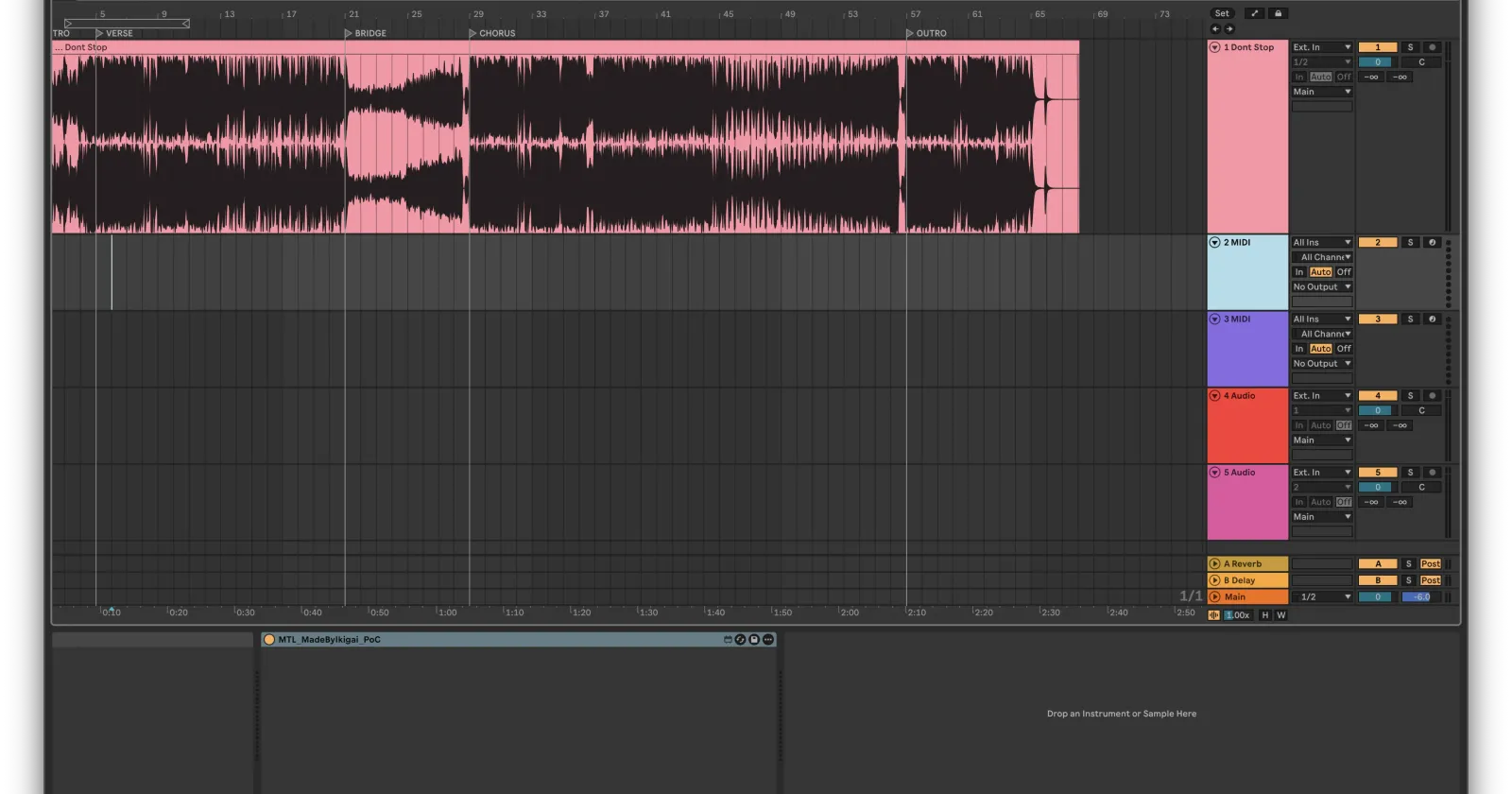
This article documents a real proof-of-concept we built - a simple "EXPORT JSON" button that extracts:
- BPM (tempo)
- Locators/sections (INTRO, VERSE, CHORUS, etc.) with timestamps in seconds
The result is a portable JSON file that can feed into visualization tools, AI models, or cross-DAW workflows.
The Goal
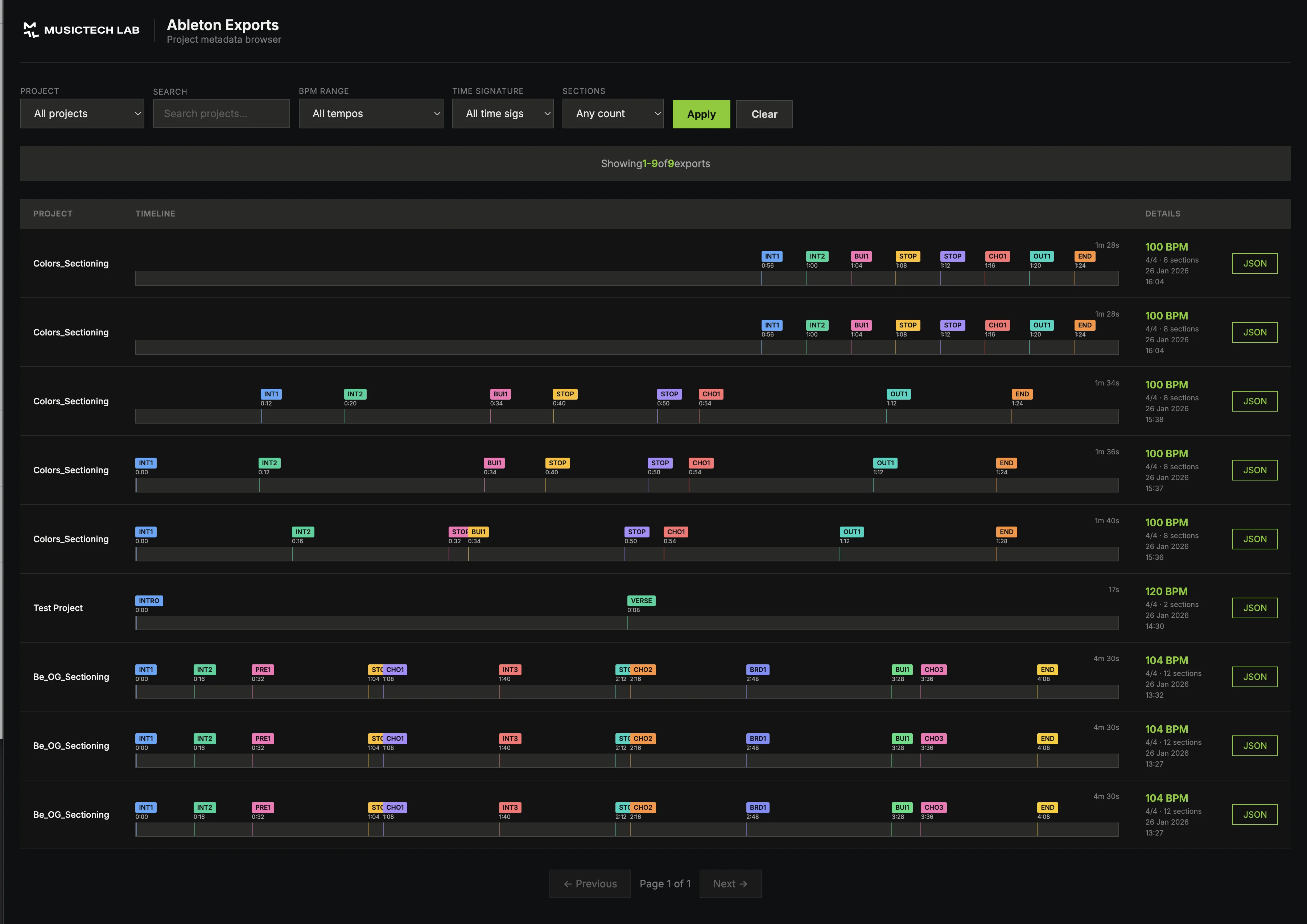
We want a one-click solution inside Ableton Live that produces output like this:
{
  "project": "my_track",
  "bpm": 103.34,
  "sections": [
    { "label": "INTRO", "time_seconds": 0 },
    { "label": "VERSE", "time_seconds": 16 },
    { "label": "BRIDGE", "time_seconds": 80 },
    { "label": "CHORUS", "time_seconds": 112 },
    { "label": "OUTRO", "time_seconds": 224 }
  ]
}
This JSON can then be:
- Imported into other DAWs (REAPER, Logic, etc.)
- Used for automated video editing synced to song structure
- Fed into machine learning models for training
- Displayed in custom visualization tools
Prerequisites
To follow along, you'll need:
| Requirement | Notes |
|---|---|
| Ableton Live 12 Suite | Max for Live is included in Suite |
| Basic Max/MSP knowledge | We'll keep it simple |
| Text editor | For the JavaScript file |
Architecture Overview
Our device consists of three components:
┌─────────────────┐     ┌──────────────────────┐     ┌────────────────┐
│   textbutton    │────▶│  js marker_export.js │────▶│   textedit     │
│  "EXPORT JSON"  │     │   (LiveAPI magic)    │     │  (JSON preview)│
└─────────────────┘     └──────────────────────┘     └────────────────┘
- textbutton - The user clicks this to trigger export
- js marker_export.js - JavaScript that queries Ableton's Live Object Model
- textedit - Read-only display showing the exported JSON
Building the Max for Live Device
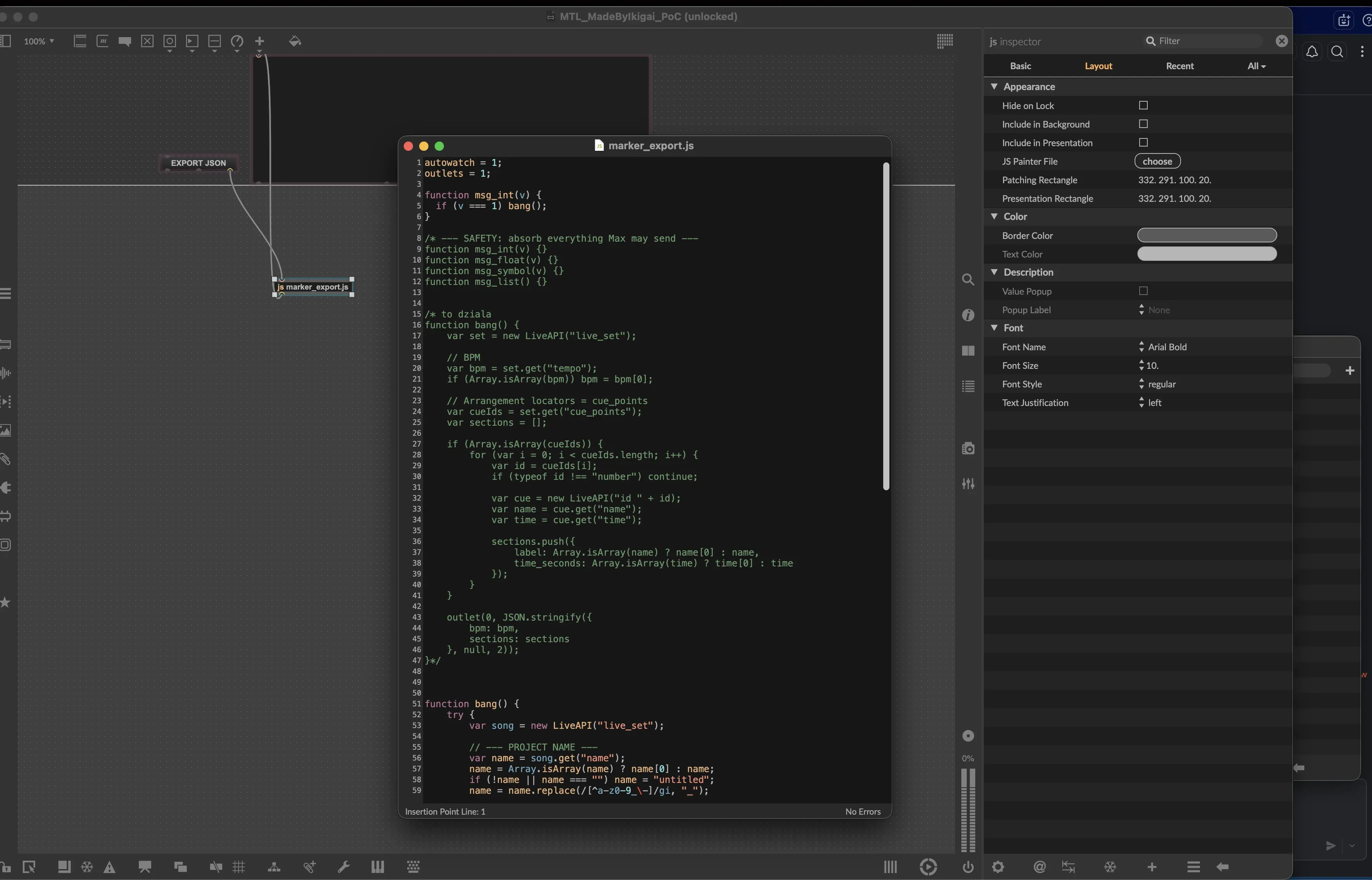
Step 1: Create the Patcher
Open Max for Live in Ableton (create a new Max MIDI Effect), then add these objects:
- textbutton - Set the text to "EXPORT JSON"
- js marker_export.js - This will hold our JavaScript logic
- textedit - Enable "Read Only" in the Inspector
Step 2: Wire the Connections
This is where things get tricky. The textbutton object has three outlets:
| Outlet | Output |
|---|---|
| 1st (left) | Button text |
| 2nd (middle) | Mouse events |
| 3rd (right) | Integer (1 on click) |
Connect the third outlet of textbutton to the inlet of js marker_export.js, then connect the outlet of the JS object to textedit.
Step 3: Set Up Presentation Mode
For the device to be usable in Live's UI:
- Select both
textbuttonandtextedit - Open the Inspector (right sidebar)
- Enable "Include in Presentation"
- Switch to Presentation Mode (View → Presentation Mode)
- Arrange the objects nicely
The JavaScript: marker_export.js
Here's the complete script that powers our device:
autowatch = 1;
outlets = 1;

function msg_int(v) {
  if (v === 1) bang();
}

function bang() {
  try {
    var song = new LiveAPI("live_set");

    // --- PROJECT NAME ---
    var name = song.get("name");
    name = Array.isArray(name) ? name[0] : name;
    if (!name || name === "") name = "untitled";
    name = name.replace(/[^a-z0-9_\-]/gi, "_");

    // --- BPM ---
    var bpm = song.get("tempo");
    bpm = Array.isArray(bpm) ? bpm[0] : bpm;

    // --- LOCATORS ---
    var locatorIds = song.get("cue_points");
    var sections = [];

    if (Array.isArray(locatorIds)) {
      for (var i = 0; i < locatorIds.length; i++) {
        if (typeof locatorIds[i] !== "number") continue;

        var l = new LiveAPI("id " + locatorIds[i]);
        var label = l.get("name");
        var time = l.get("time");

        sections.push({
          label: Array.isArray(label) ? label[0] : label,
          time_seconds: Array.isArray(time) ? time[0] : time
        });
      }
    }

    // --- BUILD JSON ---
    var data = {
      project: name,
      bpm: bpm,
      sections: sections
    };

    var json = JSON.stringify(data, null, 2);

    // Send to UI (textedit)
    outlet(0, "set", json);

    // Log to Max Console
    post("EXPORT SUCCESS\\n");

  } catch (e) {
    post("EXPORT ERROR:", e.toString(), "\\n");
  }
}
Key Concepts Explained
autowatch = 1 - Tells Max to reload the script automatically when the file changes. Essential during development.
LiveAPI - The bridge between JavaScript and Ableton's Live Object Model. We use it to access:
live_set- The current projecttempo- Current BPMcue_points- Array of locator IDs
Array handling - LiveAPI often returns single values wrapped in arrays, so we consistently check with Array.isArray().
outlet(0, "set", json) - The "set" message tells textedit to display the text without triggering its output.
Viewing the Output
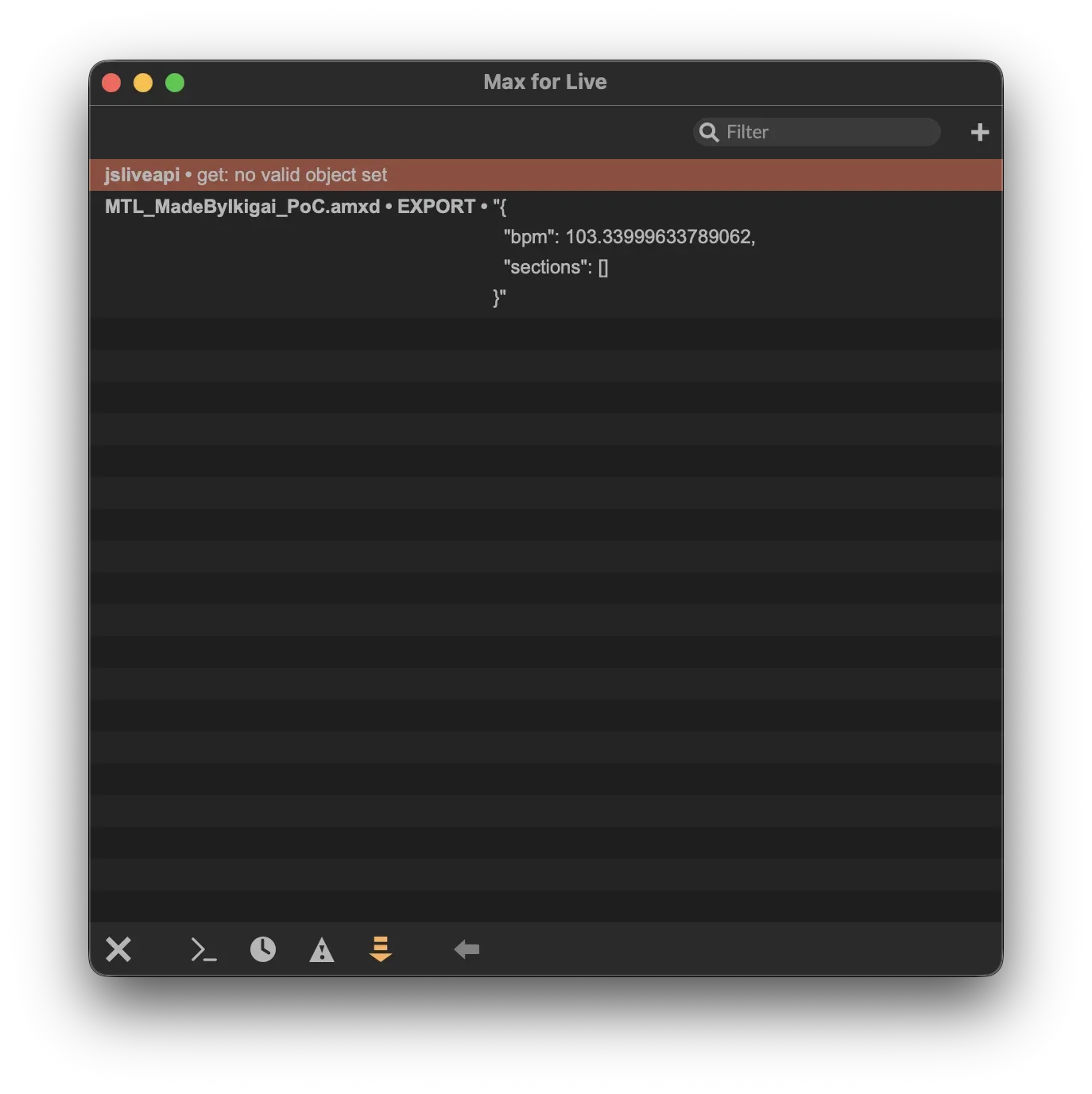
The JSON output appears in the Max Console window:
Troubleshooting Common Issues
"js: can't find file marker_export.js"
Max can't locate your JavaScript file.
Solution:
- Right-click on the
jsobject in Max - Select "Open marker_export.js"
- Save As... to the same folder as your
.amxdfile - Ensure the object text is just
js marker_export.js(no paths)
"js: no function msg_int"
The button sends an integer, but your script doesn't have a handler for it.
Solution: Add this function to your script:
function msg_int(v) {
  if (v === 1) bang();
}
"Song object has no attribute 'locators'"
The LiveAPI path varies between Ableton versions.
Solution: Use cue_points instead:
var locatorIds = song.get("cue_points");
"SendMessage error 2: Bad parameter value"
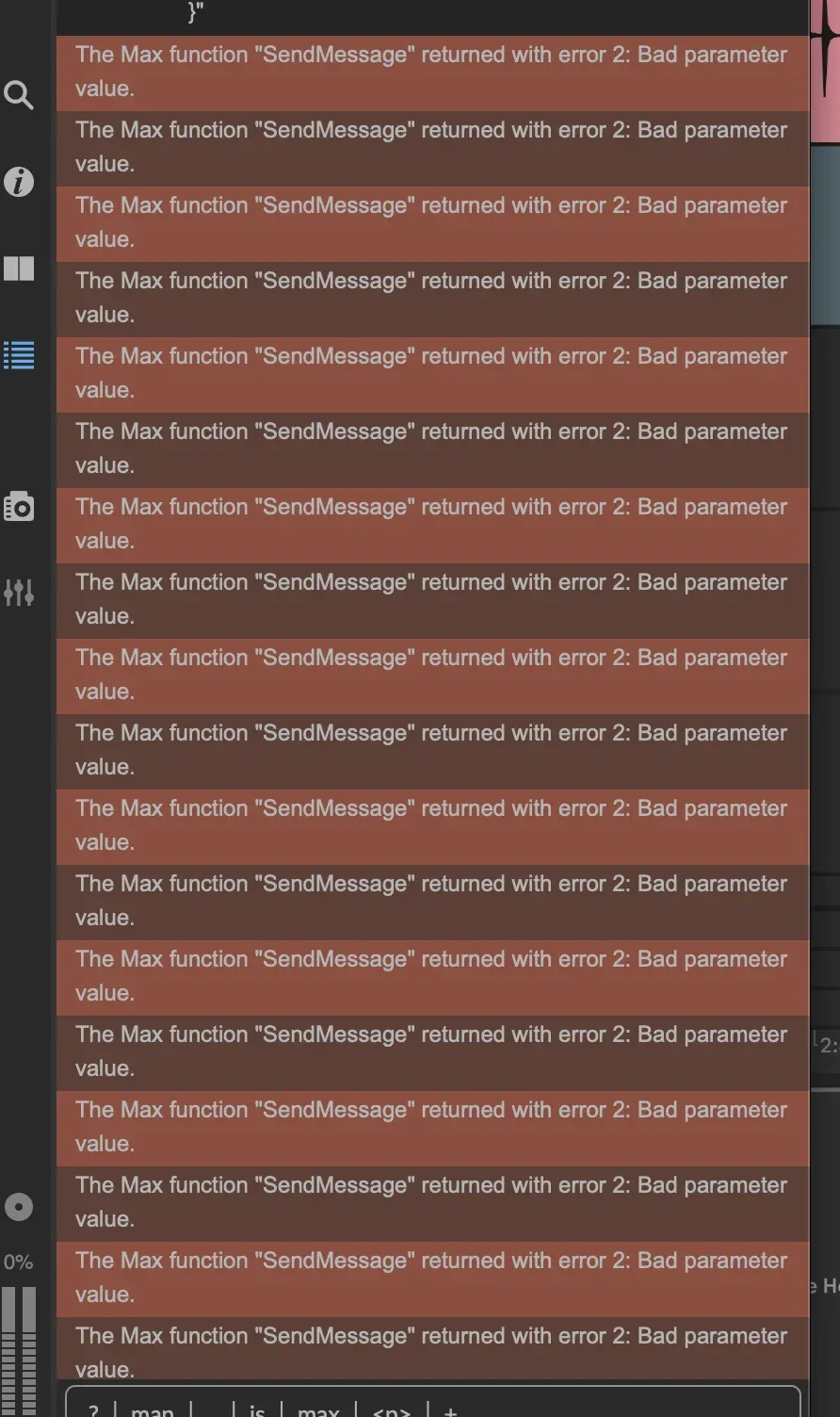
Usually caused by:
- Invalid LiveAPI path
- Querying a property that doesn't exist
- Non-numeric values in the locator ID array
Solution: Filter IDs properly:
if (typeof locatorIds[i] !== "number") continue;
Adding File Export (Optional)
To save the JSON to disk, extend the script:
// --- FILE SAVE ---
var folder = "~/Documents/AbletonExports/";
var f = new File(folder + name + ".json", "write");

if (f.isopen) {
  f.writestring(json);
  f.close();
  post("Saved to:", folder + name + ".json", "\\n");
} else {
  post("EXPORT ERROR: cannot write file\\n");
}
Note: The ~ path expansion can be inconsistent in Max/JS. For reliability, either:
- Use absolute paths
- Save to the project folder
- Create the target directory manually first
Packaging for Distribution
The Simple Way (Recommended for MVP)
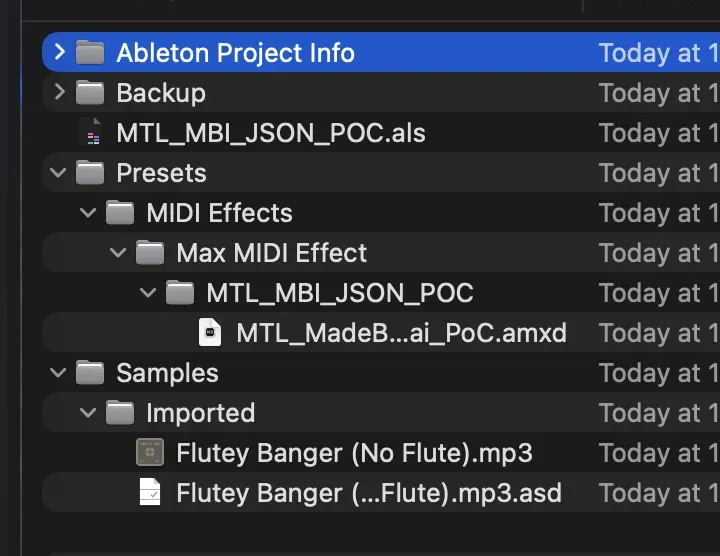
Create a folder with both files:
MTL_LocatorsToJSON/
├── MTL_LocatorsToJSON.amxd
├── marker_export.js
└── README.txt
Compress to ZIP and share. Recipients should:
- Unzip the folder
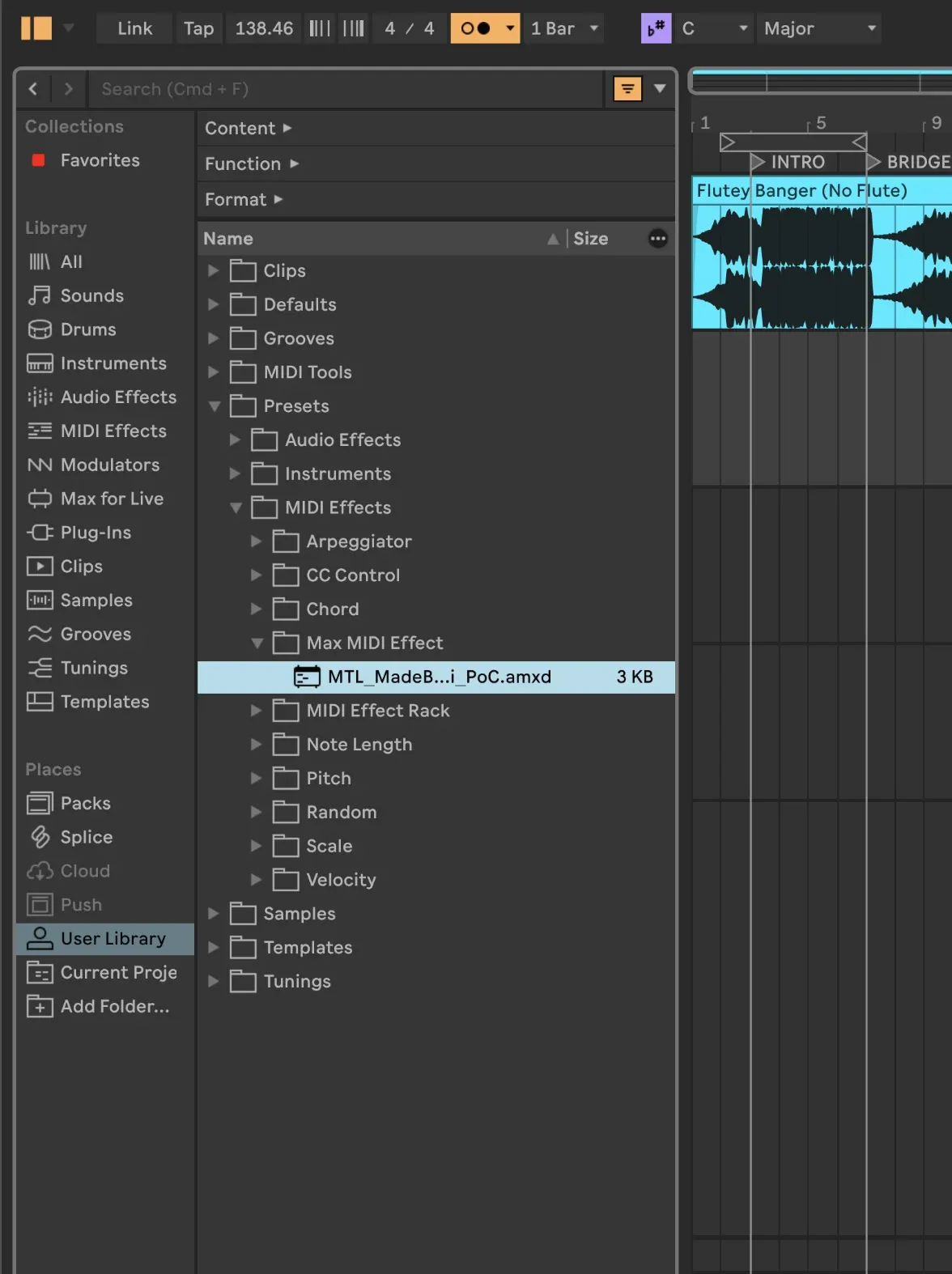
- Copy to:
~/Music/Ableton/User Library/Presets/MIDI Effects/Max MIDI Effect/ - Restart Ableton Live (or refresh the Browser)
Why Not .alp (Ableton Pack)?
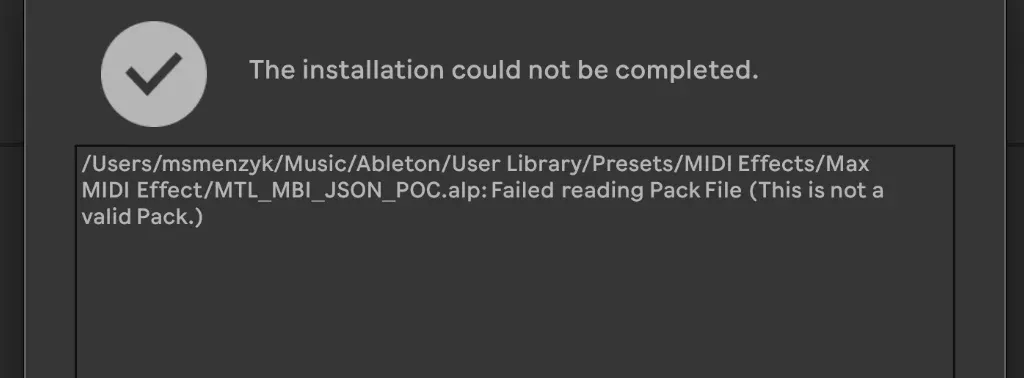
The .alp format is not a simple ZIP with a different extension. Creating valid Packs requires Ableton's specific export workflow, which varies between Live versions. For quick distribution, a ZIP folder is more reliable.
Project Folder Structure
Usage Instructions
- Add the device to any MIDI track
- Create locators in the Arrangement view (right-click → Add Locator, or Ctrl/Cmd+Shift+L)
- Name your locators (INTRO, VERSE, CHORUS, etc.)
- Click EXPORT JSON
- Copy the JSON from the text display or find it in your export folder
Integration with AI Workflows
This JSON format is designed to be compatible with our song structure analysis pipeline. You can:
- Export manually-annotated structures from Ableton
- Compare with AI-detected structures
- Train custom models on your annotations
- Import AI-generated structures back into your DAW
What's Next?
This MVP opens several possibilities:
| Enhancement | Description |
|---|---|
| Bidirectional sync | Import JSON to create locators |
| Audio Effect version | Support audio tracks, not just MIDI |
| Real-time export | Auto-export on locator changes |
| Cloud sync | Push to API endpoint directly |
| Time signature support | Include meter changes |
Complete Code Reference
The final working script:
autowatch = 1;
outlets = 1;

function msg_int(v) {
  if (v === 1) bang();
}

function bang() {
  try {
    var song = new LiveAPI("live_set");

    // PROJECT NAME
    var name = song.get("name");
    name = Array.isArray(name) ? name[0] : name;
    if (!name || name === "") name = "untitled";
    name = name.replace(/[^a-z0-9_\-]/gi, "_");

    // BPM
    var bpm = song.get("tempo");
    bpm = Array.isArray(bpm) ? bpm[0] : bpm;

    // LOCATORS
    var locatorIds = song.get("cue_points");
    var sections = [];

    if (Array.isArray(locatorIds)) {
      for (var i = 0; i < locatorIds.length; i++) {
        if (typeof locatorIds[i] !== "number") continue;

        var l = new LiveAPI("id " + locatorIds[i]);
        var label = l.get("name");
        var time = l.get("time");

        sections.push({
          label: Array.isArray(label) ? label[0] : label,
          time_seconds: Array.isArray(time) ? time[0] : time
        });
      }
    }

    // JSON OUTPUT
    var data = {
      project: name,
      bpm: bpm,
      sections: sections
    };

    var json = JSON.stringify(data, null, 2);
    outlet(0, "set", json);

    // OPTIONAL: File save
    var folder = "~/Documents/AbletonExports/";
    var f = new File(folder + name + ".json", "write");
    if (f.isopen) {
      f.writestring(json);
      f.close();
    }

  } catch (e) {
    post("EXPORT ERROR:", e.toString(), "\\n");
  }
}
Conclusion
With about 50 lines of JavaScript and a simple Max for Live patcher, we've built a bridge between Ableton Live's arrangement markers and the wider world of data-driven music tools.
This approach demonstrates a key principle: start with the simplest thing that works. A button, a script, and a text display. No complex UI, no elaborate state management. Just structured data flowing from your DAW to wherever it needs to go.
The JSON format we've chosen is intentionally minimal - project name, BPM, and an array of labeled timestamps. This makes it trivial to parse in any language and integrate with any system.
Need Help with This?
Building something similar or facing technical challenges? We've been there.
Let's talk — no sales pitch, just honest engineering advice.
Establishing cooperation between Netlify and Bravelab
The partnership has become a great deal for the companies, we believe that it is the thing also for Bravelab.io.
IT Outsourcing: Success and Failure Factors
Key factors that impact the success or failure of software development outsourcing projects and how understanding them improves your strategy.
Related Articles



Technical Partner
Technical partner at MusicTech Lab with 15+ years in software development. Builder, problem solver, blues guitarist, long-distance swimmer, and cyclist.
Newsletter
Get music tech insights, case studies, and industry news delivered to your inbox.